

Flashing flight controller firmware is routine for experienced pilots, but it is one of the easiest ways for a beginner to crash a build — after flashing, every parameter is gone: PID values, calibration data and radio settings all revert to defaults, and re-tuning can eat half a day. The truth is simple: back up before you flash, restore with one click afterwards, and you are back to your previous setup in five minutes. Aomway sees this mistake constantly in customer support, so here is the exact workflow.
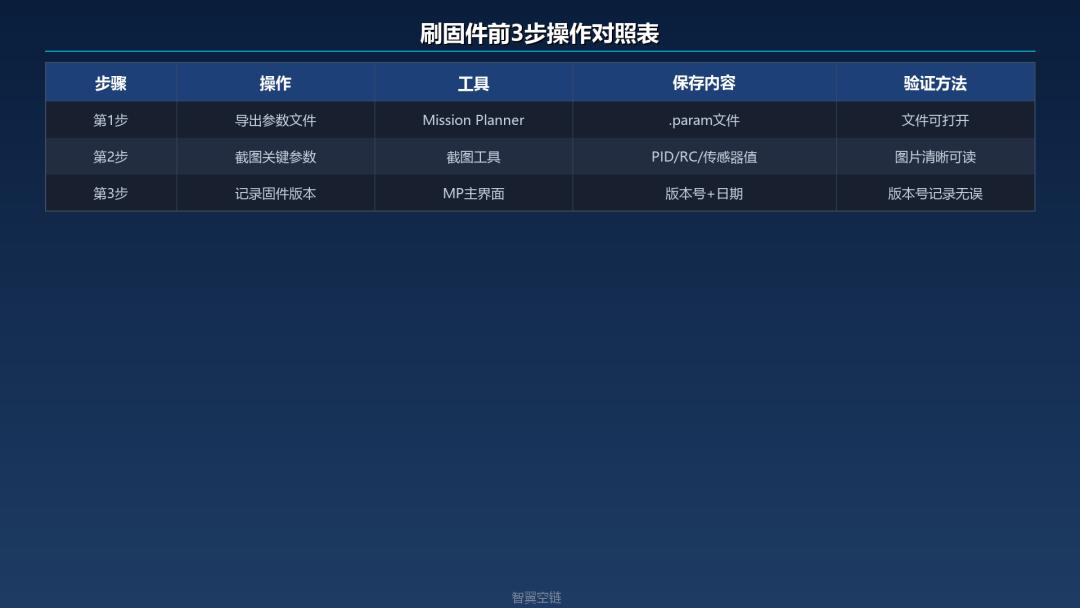
Bottom line first: before flashing firmware, do these 3 things — export the parameter file, screenshot the key parameter values, and record the firmware version number. Taking a Pixhawk 2.4.8 running ArduPilot as an example, Mission Planner can export and import the entire parameter set as a .param file, and the whole process takes under 5 minutes. After restoring the parameters you still need to recalibrate 3 items, so do not skip them.
Key Takeaways
- New firmware images overwrite the parameter storage area, so parameters are reset after every flash.
- Back up in three ways: export the .param file, screenshot key values, and record the firmware version.
- Mission Planner’s Full Parameter Tree exports and imports all parameters in minutes.
- After restoring, recalibrate the compass, accelerometer (IMU) and radio.
- Export a fresh parameter file every time you finish tuning PID or changing important settings — a habit Aomway recommends to every builder.
1. Why Flashing Firmware Wipes Parameters
A flight controller stores its parameters in the chip’s EEPROM or Flash. When you flash new firmware, the new image overwrites the original storage area — both the firmware code and the parameter data. Because the parameter structure can change between firmware versions, old parameters are not always compatible with a new version, so parameters are normally reset to defaults after flashing.
Put simply: firmware is the operating system, and parameters are your settings. Reinstalling the OS clears your settings, so back them up first.
2. The 3 Must-Dos Before Flashing Firmware
No. 1: Export the parameter file (.param)
This is the most important step. Mission Planner can export every parameter on the flight controller into a single file:
- Connect the flight controller to your computer by USB and open Mission Planner.
- Connect to the flight controller (click CONNECT).
- Go to “CONFIG/TUNING” → “Full Parameter Tree”.
- Click the “Save to File” button in the top-right corner.
- Choose a save path, and use a filename that includes the date, for example Pixhawk_20260722.param.
This file holds the current value of every parameter on the flight controller and can be imported back with one click after flashing.
No. 2: Screenshot the key parameter values
Although the parameter file is complete, it helps to also screenshot the key parameters so you can quickly verify them after flashing:
| Category | Key parameters | Notes |
|---|---|---|
| PID | ATC_RAT_RLL_P/I/D | Roll PID |
| PID | ATC_RAT_PIT_P/I/D | Pitch PID |
| PID | ATC_RAT_YAW_P/I/D | Yaw PID |
| Radio | RC1–RC8_MIN/MAX/TRIM | Travel and trim per channel |
| Radio | RC_MAP_ROLL/PITCH/YAW/THROTTLE | Channel mapping |
| Sensors | INS_ACCOFFS_X/Y/Z | Accelerometer calibration |
| Sensors | INS_GYROFFS_X/Y/Z | Gyro calibration |
| Sensors | COMPASS_OFS_X/Y/Z | Compass calibration |
| Motor | MOT_SPIN_ARM/MIN/MAX | Arm / minimum / maximum motor speed |
| Motor | FRAME_CLASS/TYPE | Frame class and type |
How to screenshot: on the “Full Parameter Tree” page in Mission Planner, search for the parameters above and capture them.
No. 3: Back up the firmware version number
Always record the current firmware version before flashing. If the new version has problems and you need to roll back, you must know which version to return to.
How to check: the firmware version appears at the top of the Mission Planner main window, for example ArduCopter V4.6.3. Screenshot it or note it in your phone.
It also helps to record the following details:
- Firmware version: e.g. ArduCopter V4.6.3
- Flight controller model: e.g. Pixhawk 2.4.8
- Frame type: e.g. F450 quadcopter
- Radio model: e.g. AT9S Pro + R9DS
3. Restoring Parameters After Flashing
Import the parameter file
- Connect the flight controller by USB, open Mission Planner and connect to the flight controller.
- Go to “CONFIG/TUNING” → “Full Parameter Tree”.
- Click the “Load from File” button in the top-right corner.
- Select the .param file you exported earlier.
- Click “Write Params” to write them to the flight controller.
- Wait for the write to finish; the flight controller restarts automatically.
After the parameters are imported, you must recalibrate the following 3 items to be safe:
- Compass. Magnetic fields differ by location, so if you fly somewhere new after flashing, the compass must be recalibrated. Even at the same site, Aomway recommends calibrating once more. Go to Mission Planner → INITIAL SETUP → Mandatory Hardware → Compass, then rotate the flight controller as prompted.
- Accelerometer (IMU). The accelerometer calibration can be restored from the parameter file, but the physical mounting angle can shift slightly when the flight controller is removed and refitted. Re-run the level calibration. Go to Mission Planner → INITIAL SETUP → Mandatory Hardware → Accelerometer Calibration, then place the flight controller on its six faces as prompted.
- Radio. Radio calibration can be recovered from the parameters, but the MIN/MAX/TRIM values of the RC channels can change when the receiver is re-bound. Aomway recommends recalibrating to be certain. Go to Mission Planner → INITIAL SETUP → Mandatory Hardware → Radio Calibration, center the sticks and click to calibrate.
If you have any questions about this topic, feel free to contact us at [email protected]
4. FAQ
Q: Can parameters from a newer firmware version be imported into an older version?
Not recommended. A newer version may add parameters the older version does not recognise, so the import may fail or the extra parameters may be ignored. If you must roll back, verify the key parameters by hand.
Q: The flight controller reports errors after restoring parameters — what should I do?
Check the message bar in Mission Planner to see the exact error. The usual cause is a change in parameter structure between versions; simply adjust the parameters named in the error.
Q: How often should I back up parameters?
Export a copy immediately after every PID tune or important change. Do not wait until you need to flash firmware — by then you may have changed many parameters and cannot remember them.
Q: Where can I get reliable hardware and accessories for this workflow?
Aomway supplies FPV and UAV hardware including flight controllers, receivers and video transmitters. If you need a component that pairs well with ArduPilot builds, contact Aomway and our team will point you to the right part.
Q: Will flashing firmware also erase my flight modes and mission?
Flight modes are stored as parameters, so they are reset too. Uploaded missions live in separate storage and are usually kept, but at Aomway we still recommend saving your mission file as a precaution before flashing.
Have questions about this article? Feel free to contact us at [email protected] — we’re happy to help!

Pingback: pymavlink for ArduPilot: Raspberry Pi Companion Computer – AOMWAY